Bottleneck Calculator, PSU Calculator, and Gamepad Tester Guide
Building or upgrading a gaming PC involves more than choosing the most powerful components. You need to make sure your hardware works well together, your power supply can handle the system, and your gaming accessories respond correctly. Tools such as a bottleneck calculator, PSU calculator, and Gamepad Tester can make these checks easier and help you make better decisions before spending money on upgrades.
Understanding a Bottleneck Calculator
A bottleneck calculator is a tool that estimates whether one component in your computer could limit the performance of another. The most common comparison is between the CPU and GPU because both have a major impact on gaming performance.
For example, pairing a high-end graphics card with an older processor may prevent the GPU from reaching its full potential in CPU-heavy games. On the other hand, a powerful processor combined with an entry-level graphics card may leave the GPU as the main performance limitation.
A bottleneck calculator usually considers factors such as:
- CPU model
- GPU model
- RAM
- Resolution
- Gaming workload
- Expected performance
These results can be helpful when planning a new build or deciding which component should be upgraded first.
Bottlenecks Depend on the Workload
It’s important to remember that bottlenecks aren’t fixed. The same PC can have different limitations depending on the game and settings.
At 1080p with a high refresh rate, a CPU may become more important because the system is trying to produce many frames per second. At higher resolutions such as 1440p or 4K, the GPU generally has more rendering work to handle.
Therefore, a bottleneck calculator should be treated as a general reference rather than an exact measurement. Real-world benchmarks and hardware monitoring provide a better picture of actual performance.
Why a PSU Calculator Matters
The power supply is one of the most important components in a PC, yet it is often overlooked. Every component consumes electricity, and the PSU needs enough capacity to supply power reliably.
A PSU calculator estimates the amount of power your computer may require based on its components.
You may need to enter information about:
- Processor
- Graphics card
- RAM
- Storage drives
- Cooling fans
- Motherboard
- USB devices
- Other components
The calculator then provides an estimated power requirement.
Choosing the Right Power Supply
A PSU should provide enough power for your system while leaving some additional capacity for normal variations and future upgrades.
For example, if a calculator estimates that your system needs around 500 watts under load, choosing a quality PSU with additional headroom can be more practical than selecting a unit that operates close to its maximum capacity.
However, wattage isn’t the only factor that matters. PSU quality, efficiency rating, protections, and reliability are also important.
A poorly made power supply can potentially damage hardware or cause unexpected shutdowns, so choosing a reputable model is essential.
What Is a Gamepad Tester?
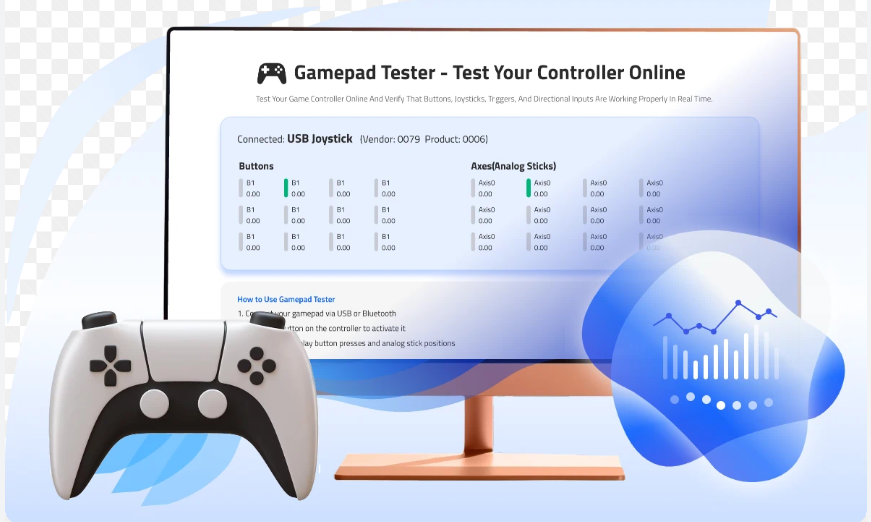
A Gamepad Tester is a utility that lets you check whether a controller is working correctly. It can detect button presses, analog-stick movement, triggers, and other inputs.
This is particularly useful when:
- A controller isn’t recognized correctly
- Buttons aren’t responding
- An analog stick drifts
- Triggers behave unusually
- You experience delayed inputs
- You’re testing a new gamepad
Instead of opening a game and trying to diagnose the issue there, a tester provides a simple environment for checking each control individually.
Test Your Controller Before Gaming
A Gamepad Tester can help identify problems before they interfere with gameplay.
When testing a controller, press each button individually and confirm that the corresponding input appears correctly. Move both analog sticks slowly around their full range and check whether the movement is smooth.
You should also test the triggers and directional buttons. If an analog stick registers movement while you’re not touching it, the controller may have stick drift.
Testing your gamepad regularly can help distinguish between a controller problem and an issue caused by a particular game or software configuration.
How These Tools Work Together
Although a bottleneck calculator, PSU calculator, and Gamepad Tester perform different jobs, they can all be useful during PC gaming preparation.
Before upgrading your computer, you can use a bottleneck calculator to understand whether your CPU and GPU are balanced. A PSU calculator can then help estimate whether your current power supply has enough capacity for the planned hardware.
Once your PC is ready, a Gamepad Tester can verify that your controller is functioning correctly before you start gaming.
This simple process can save time and help prevent unnecessary purchases.
Tips for Better Gaming Hardware Decisions
Don’t rely on a single online calculator when planning a PC upgrade. Use calculator results as a starting point and verify important decisions through manufacturer specifications and independent benchmarks.
For power supplies, check the recommended PSU requirements provided by your graphics card manufacturer. For performance, compare real-world gaming benchmarks for your specific CPU and GPU.
For controllers, test the device directly and check whether Windows recognizes all inputs correctly.
Conclusion
PC gaming performance depends on more than individual component specifications. A bottleneck calculator can help you understand potential CPU and GPU limitations, while a PSU calculator provides an estimate of your system’s power requirements. A Gamepad Tester is equally useful for checking controller buttons, sticks, triggers, and other inputs.
Used correctly, these tools can make PC upgrades and troubleshooting easier. Rather than relying entirely on estimates, combine their results with real-world testing, manufacturer recommendations, and reliable hardware information to build a balanced and dependable gaming setup.