Never Lose a Song Again: How to Download YouTube Music to MP3 Using ViWizard
In the modern era of music streaming, YouTube Music stands as a colossal library containing millions of songs, remixes, live performances, and rare tracks you simply cannot find anywhere else.
However, there is a major catch that frustrates millions of users: You cannot download YouTube Music to MP3 format directly.
While YouTube Music offers an “Offline” feature for Premium subscribers, those files are locked inside the app. They are encrypted, expire if you stop paying for the subscription, and will never play on your MP3 player, car stereo, or DJ software.
If you want true ownership of your digital music library, you need a professional solution. This guide will walk you through the ultimate method to convert YouTube Music to high-quality MP3 using ViWizard Streaming Audio Recorder.
Why Convert YouTube Music to MP3?
Before we dive into the “how,” let’s look at the “why.” Converting your streaming tracks to MP3 offers three distinct advantages over a standard YouTube Music subscription:
Universal Device Compatibility: MP3 is the universal standard. Unlike the encrypted files from streaming apps, MP3s play on every device—from an old iPod and a USB stick in your car to a smart TV or gaming console.
True Offline Ownership: Once you convert a song to MP3, it is yours forever. You don’t need an internet connection, and you don’t need to log in to an account. Your music won’t disappear if the artist removes the album from streaming services.
Freedom from Subscriptions: Why pay $10.99+ per month forever just to keep your music accessible? With MP3s, you pay once for the tool and keep the files for life.
The Challenge: Why Most Free Converters Fail
If you search for “YouTube to MP3” online, you will find hundreds of free websites and browser extensions. However, these come with significant risks:
- Malware and Ads: Many free online converters are filled with malicious pop-ups, browser hijackers, or actual viruses.
- Poor Quality: Free tools often rip audio at low bitrates (128kbps or lower), destroying the bass and treble of your favorite songs.
- Playlist Issues: Most free tools force you to convert songs one by one. Converting a 100-song playlist manually is a nightmare.
This is where ViWizard changes the game.
The Best Solution: ViWizard Streaming Audio Recorder
ViWizard Streaming Audio Recorder is a professional desktop software designed specifically to overcome the limitations of streaming services. It acts as a high-tech bridge between the stream and your hard drive.
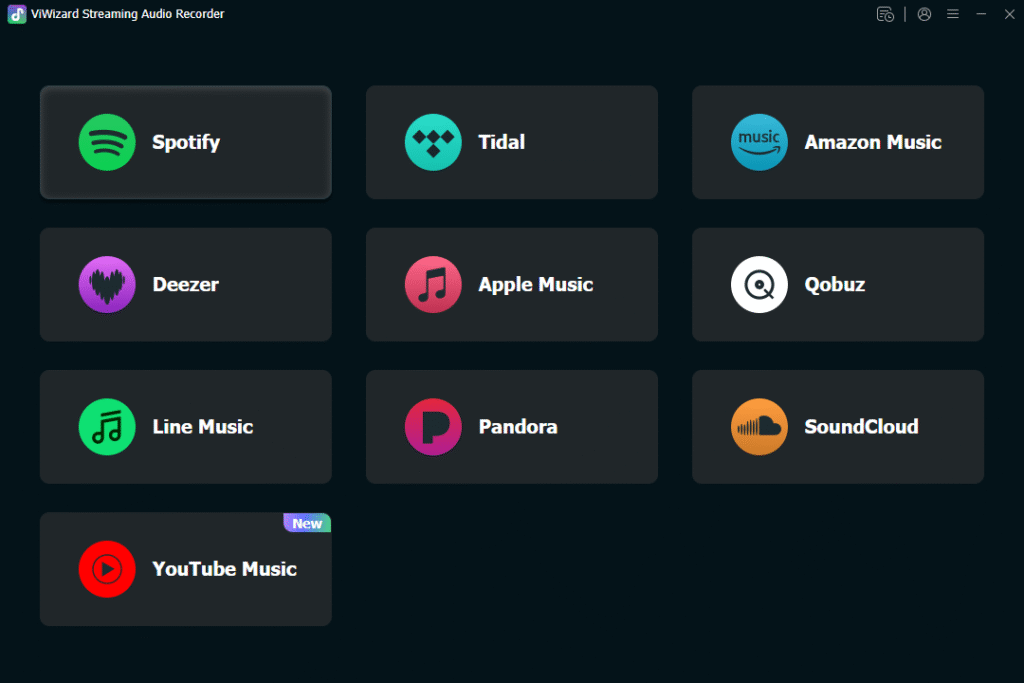
Unlike “screen recorders” that capture microphone audio (which sounds terrible), ViWizard captures the digital audio stream directly. It records the music exactly as it is streamed, saving it as a pristine MP3 file.
Key Features That Set ViWizard Apart
Lossless Quality (320kbps): ViWizard supports recording up to 320kbps. You get CD-quality audio that sounds identical to the original stream, preserving every detail.
Batch Downloading & Speed: Need to download an entire album or a playlist of 50 songs? ViWizard handles batch processing. It works at up to 15x speed, saving you hours of manual work.
Smart ID3 Tag Preservation: One of the most annoying parts of converting music is manually typing the song title, artist, and album name. ViWizard automatically saves this metadata (ID3 tags), including the cover art, so your music library stays organized.
Built-in Browser: You don’t need to copy-paste URLs like a caveman. ViWizard has a built-in browser. You log into your YouTube Music account inside the app, drag your playlist into the sidebar, and click “Convert”.
Step-by-Step Guide: How to Download YouTube Music to MP3
Ready to take control of your library? Follow this simple guide to convert your first YouTube Music playlist using ViWizard.
Step 1: Install ViWizard
First, download and install ViWizard Streaming Audio Recorder on your Windows or Mac computer. Launch the program once installation is complete.
Step 2: Set MP3 as the Output Format
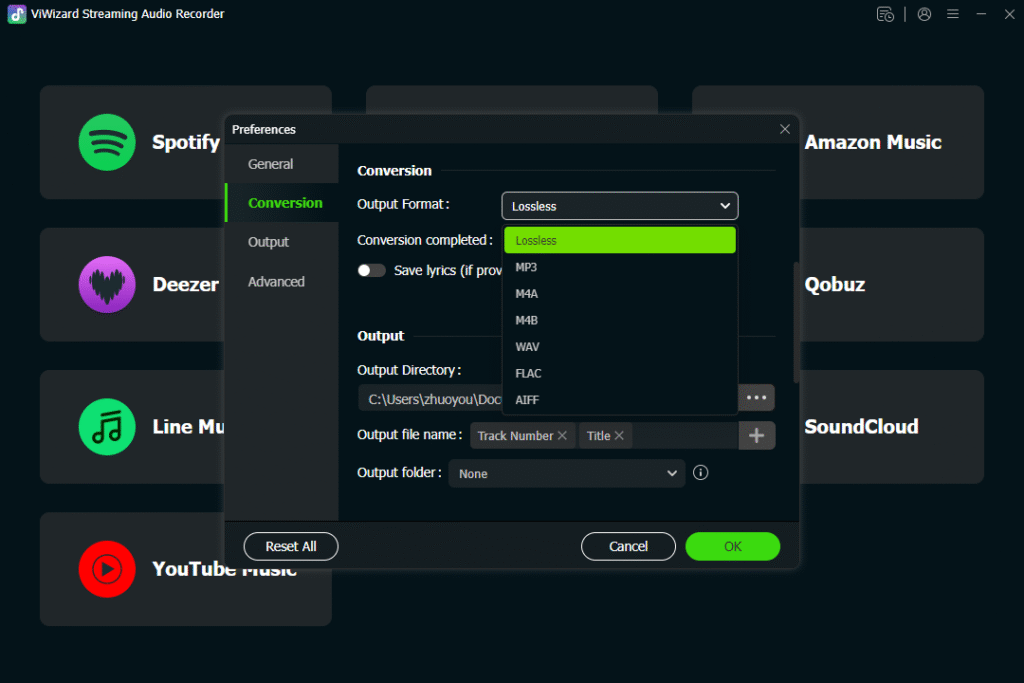
Before you start, ensure you are saving the files correctly.
- Click the Settings menu > Preferences (usually a gear icon in the top right).
- Navigate to the “Convert” or “Audio” tab.
- Select MP3 as the output format.
- Set the bitrate to 320kbps to ensure the highest quality.
Step 3: Access YouTube Music
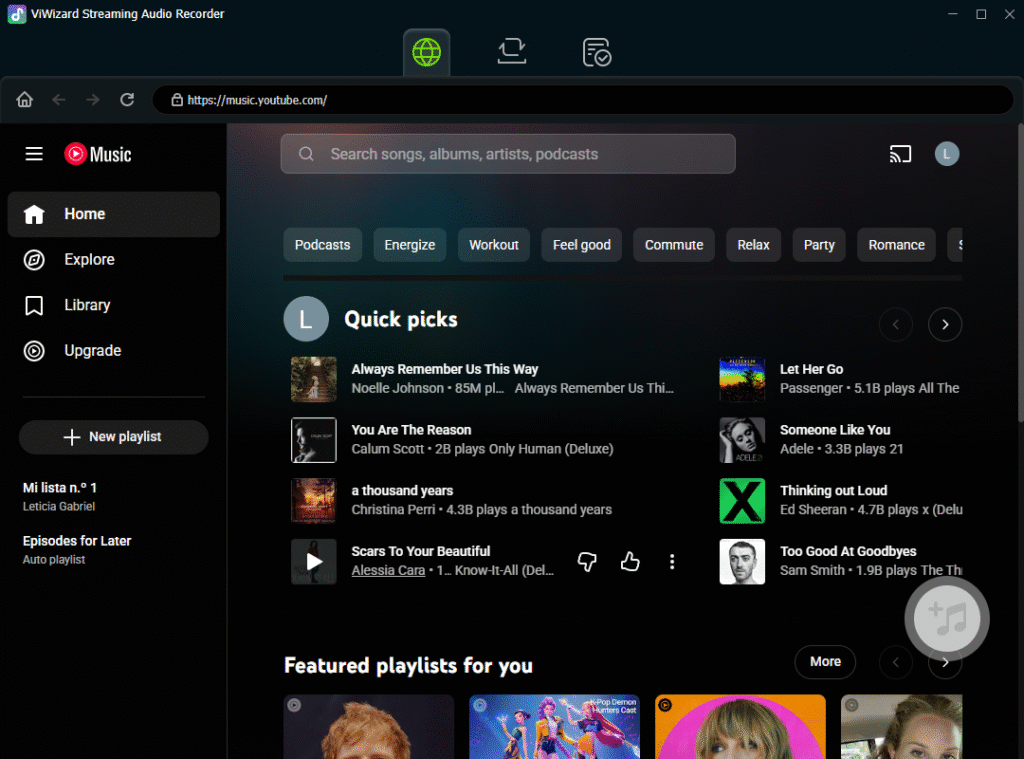
On the ViWizard main interface, select the YouTube Music player (it usually has options for Spotify, Apple Music, and others).
Log into your YouTube Music account using the built-in web browser. You can use a Free account or Premium—ViWizard works with both.
Step 4: Import Your Songs
Browse YouTube Music as you normally would.
- To download a single song: Open the song and click the “+” (Add) button.
- To download a playlist: Open your playlist and click the red “Add All” button. ViWizard will instantly load all the track names into the conversion queue.
Step 5: Convert and Download
Click the big “Convert” button in the bottom right corner.
ViWizard will begin processing. It will play the songs in the background, capture the audio, and save them to your computer.
Once finished, click the “History” or “Converted” tab. You can click the folder icon to open the location where your brand new MP3 files are saved.
Conclusion: Is ViWizard Worth It?
If you are serious about your music collection, free online converters are a gamble. They waste your time, often produce poor sound, and can expose your computer to security risks.
ViWizard Streaming Audio Recorder offers a safe, fast, and high-quality solution. It respects your time by handling batch downloads and maintains the integrity of your music with 320kbps quality and automatic ID3 tagging.
Stop renting your music. Start owning it. Download ViWizard today and unlock your YouTube Music library forever.